 M10 Docs
Editor Navigation
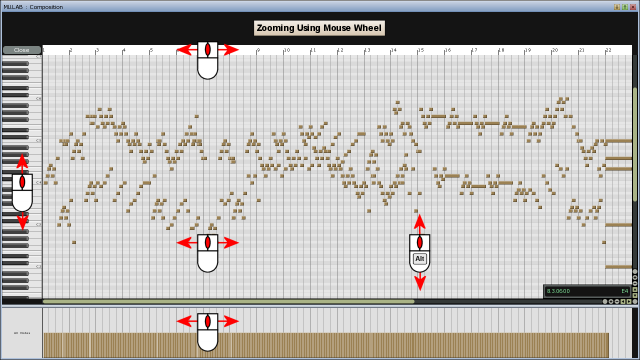
Zooming Using The Mouse Wheel
Use the mouse-wheel to zoom in/out in the main direction. Zooming is focused on the cursor point. Hold Alt and use the mouse-wheel to zoom in/out in the other direction. Zooming is focused on the cursor point.
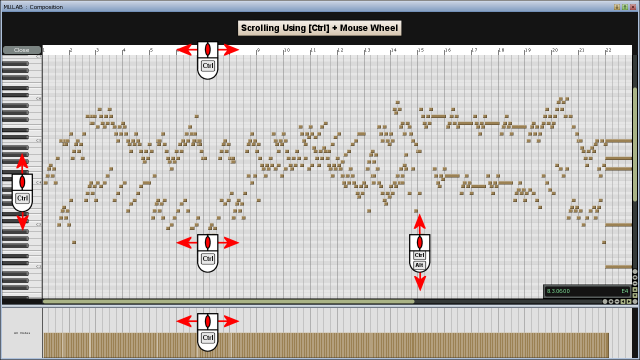
Scrolling Using Ctrl + Mouse Wheel
Hold Ctrl and use the mouse-wheel to move the editor in its main direction.
Hold Ctrl+Alt and use the mouse-wheel to move the editor in its other direction.
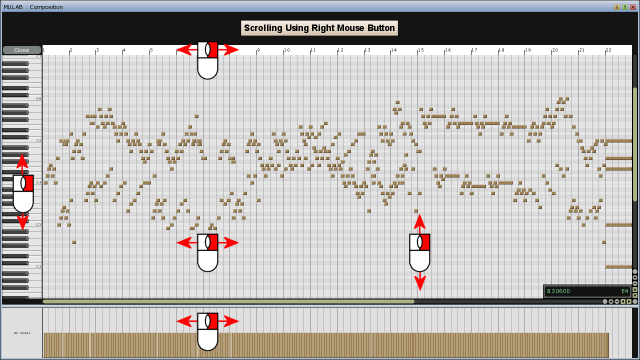
Scrolling Using The Right Mouse Button
Right-click-drag to pan the editor. You can also use the middle mouse button for this.
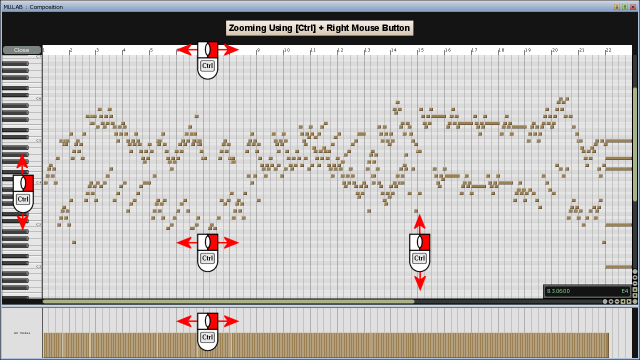
Zooming Using Ctrl + Right Mouse Button
Hold Ctrl and right-click-drag to zoom in/out on the cursor point. You can also use the middle mouSe button for this.
User Preference: Switch Zoom <-> Scroll
Note that there is a preference called "EditorNavigation" with which you can reverse the zooming and panning actions.
Note that some editors can only be panned/zoomed horizontally or vertically. E.g. the Event List Editor is a pure vertical editor.
Extra Info
- The Auto Scroll feature will only do auto scrolling when the play cursor was already visible in a view.
If for example you're zooming in on a section and the play cursor gets out of the zoomed in section, then there will be no auto scroll (even when auto scroll is on) because that would ruin your zoom in.If the play cursor is not visible and you want to scroll the editor to the play cursor then use the "Scroll To Play Cursor" shortcut function.
This function works independent of whether Auto Scroll is on or off. Once the play cursor is visible again then Auto Scroll will continue auto scrolling. (if enabled of course)