 M10 Docs
Virtual MIDI Keyboard
Virtual MIDI Keyboard
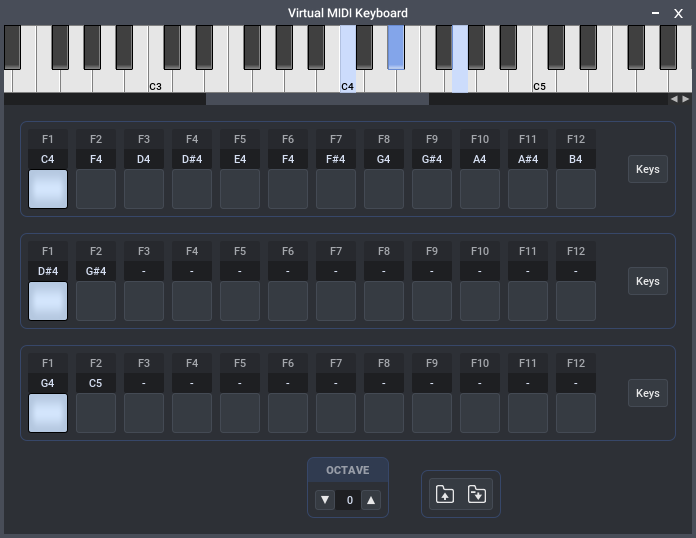
You can show the Virtual MIDI Keyboard (VMK) via the Project menu, or via right-click on the Focused Module Keyboard.
With the Virtual MIDI Keyboard you can use the computer keyboard to play and record notes.
This is how it works:
- The GUI Key can be edited per key pad by clicking the GUI Key.
- The MIDI Key can be edited per key pad by dragging/wheeling/double-clicking the MIDI key value.
- You can also put different MIDI keys on the same GUI key to create chords.
- Each row also has some built-in GUI Key preset sets, available via a row's options button at the right of a row.
- The VMK is only active when it is visible or docked. Closing the VMK ends its active state. However... see next point.
- Each row can be set to "Always Active" which makes that row active even if the VMK is not on screen.
So such 'Always Active' keys work as soon as the project is loaded.
This may also be handy for live setups. - The Page Up/Page Down keys change the Octave Shift.
- Right-click key pad for MIDI channel and Always Active settings for that individual key pad.
- The VMK supports different MIDI channels. Use the option buttons to define a MIDI channel for the top keyboard and for each row. If a MIDI Channel is set to "Auto" then the focused MIDI channel of the target module is used.
- Together with MIDI channel support, the VMK also uses the project's MIDI Input Channel Targets.
These 2 features work nicely together and allow the VMK to play various target modules in the project. - You can load/save VMK preset files using the 2 preset buttons at the bottom-right of the VMK.
- All VMK's setup data is stored in the project/VMK preset.